The ultimate introduction to
Chromebooks for Schools
This guide is written for everyone with a stake in your school’s technology. We’ve tried to make this guide genuinely useful. Not a brochure or a checklist, just a straight-talking resource from a team that has been doing this for a long time.
A 1:1 Chromebook programme – one device, per student, all the time – is one of the most significant strategic commitments a school can make.
When students without home devices can’t complete homework or access revision materials, the gap between them and their peers widens with every passing term. The digital divide is an equity problem, not a tech one. And it has a practical solution.
The question schools ask us is rarely whether to pursue 1:1. It’s how can they adopt a scheme without breaking the budget, without creating an IT management headache and without leaving families who can’t afford a new device behind.
Here’s how.
Table of Contents
- Why are Chromebooks so popular in education?
- What tech specs do school Chromebooks actually need?
- Comparing Chromebook manufacturers
- What’s the difference between a Chromebook and Chromebook Plus?
- Frequently Asked Questions about Chromebooks
- What are the benefits of ChromeOS for students?
- What accessibility features are built into Chromebooks?
- How to manage school Chromebooks
- How to fund a 1:1 Chromebook programme
- What does a 1:1 Chromebook programme mean for school governance?
- What can schools do with their old laptops?
- How can schools convert their old laptops using ChromeOS Flex?

Why are Chromebooks so popular in education?
Chromebooks have been the most popular student device since 2014. Schools choose them because, compared against Windows laptops and iPads, Chromebooks consistently win on the metrics that matter most in education: total cost of ownership (TCO), manageability, security and longevity.
If your school uses Google Workspace for Education – Gmail, Classroom, Docs, Slides, Drive – Chromebooks aren’t just compatible, they’re native. The integration is seamless, the sign-in is instant and the collaborative tools work exactly as they’re designed to.
Chromebooks vs Windows laptops
Windows devices offer broader software compatibility, but that flexibility comes with a management burden. Driver updates, antivirus software, local file management, imaging – these require dedicated IT resources.
Chromebooks are managed centrally through the Google Admin Console, with policies pushed automatically to every device. For a school of 300 students (or a MAT with thousands), that difference isn’t trivial.
Chromebooks vs iPads
iPads are excellent creative tools, but at education-grade specification they’re significantly more expensive and the walled-garden approach to app management can be restrictive. Ultimately, schools buying iPads like the looks and the logo.
Chromebooks offer a more open, keyboard-native experience that’s better suited to the demands of K-12 and A-Level coursework, extended writing and the Google Workspace environment that most UK schools already use.
Chromebook Buying Guide
What tech specs do school Chromebooks actually need?
The short answer: 8GB RAM, 64GB storage, MIL-STD-810H certification and an AUE date that covers your intended lifecycle. Any device that doesn’t meet this minimum criteria might not be suitable in the long run.
| The 8GB RAM Standard | Today's classroom tools involve multiple tabs running simultaneously in the browser, video content and real-time collaboration. Devices with only 4GB RAM will struggle with this over time as apps get more demanding, while 8GB handles this comfortably over a five-year lifecycle. |
| Auto Update Expiry (AUE) | Every ChromeOS device has a date at which point Google stops issuing security and feature updates for that model. Consumer devices from retailers and online stores often only have short remaining support window of 2-3 years. Chromebooks for schools should carry an AUE at least five years after the date of purchase, with 8-10 years being the gold standard. |
| MIL-STD-810H | MIL-STD-810H, often referred to as 'mil-spec', is a US military-grade durability certification covering drops, vibration, temperature variation, humidity and physical stress. In practice, look for reinforced corner bumpers/lid hinges and spill-resistant keyboards rated for at least 330ml of liquid (the size of a typical fizzy drink). |
| 64GB as the Practical Minimum | Most modern Chromebook use is cloud-native, meaning local storage is a lot less critical than it is on a Windows laptop or iPad. However, for schools using Android apps, offline modes, or locally stored media, 32GB becomes restrictive quickly. We suggest 64GB of local storage as standard for any education Chromebook deployed in 2026. |
| Clamshell or Convertible? | Convertible form factors (also called 2-in-1 devices) have a 360° hinge, a touchscreen and often a garaged stylus. These offer flexibility and suit primary settings where tablet-mode helps younger learners. Clamshells are typically more robust and often offer slightly higher specs for the same money. |
Comparing Chromebook Manufacturers
The workhorses of the education sector
Best for schools looking for proven, high-volume reliability and a wide range of 2-in-1 convertible options.

A modular mindset leading in serviceability
Best for schools who want rugged devices that are easy to maintain and simple to perform basic repairs.

Human-centric designs that feel great to use
Best for schools and MATs who want a standardised, quality experience across all devices in their estate.

High-performance devices with premium aesthetics
Best for staff/teacher devices and Sixth Form environments where a premium feel are priorities for engagement.
What's the difference between a Chromebook and Chromebook Plus?
Chromebook Plus devices are certified with a higher spec as standard, offering a consistently capable experience in addition to some unique features you won’t find on regular models. For Sixth Form/college students and school teaching staff, Chromebook Plus is worth serious consideration.
To qualify for the Chromebook Plus badge, a device must have:
- A minimum of 8GB RAM
- A minimum of 128GB storage
- A 1080p Full HD display (or higher)
- A 1080p Full HD webcam
- An Intel Core i3 / AMD Ryzen 3 processor or above
- Full access to Google AI features, including Gemini built-in.

Frequently Asked Questions about Chromebooks
How much does a school Chromebook cost?
For an education-grade device in 2026 that meets approved specification standards (8GB RAM, 64GB storage, MIL-STD-810H certification and an AUE that supports a five-year lifecycle), expect to budget between £220 and £350 per unit, plus £30 for the Chrome Education Upgrade.
Can school Chromebooks get viruses?
Chromebooks have advanced security features such as verified boot and sandboxing, which prevents viruses from ever taking root on the device and spreading across your school IT estate. Coupled with monthly automatic updates, Chromebooks are the most secure devices on the market.
Do school Chromebooks work at home?
When Chromebooks are managed through the Google Admin Console, web filtering and safeguarding policies are applied at the account level. This means that students can continue to use their Chromebook at home, while the school’s policies keep them protected wherever they are.
What is the Total Cost of Ownership (TCO) for Chromebooks?
When factoring in reduced device costs thanks to lower dependency on high-specs, a one-off device management licence, robust hardware options specifically for education and substantially lower IT management overheads, Chromebooks are incredibly cost-effective for schools.
What happens when a Chromebook reaches end-of-life?
Chromebooks receive automatic updates for 10 years from the date the model was manufactured. When they reach the Auto Update Expiry (AUE) date, the device will continue to function, but won’t get security updates or new features. At that time, we recommend replacement.
Are Chromebooks suitable for MATs?
Yes! As cloud-first devices managed through the Google Admin Console, the case for Chromebooks is even stronger for Multi-Academy Trusts. Users and devices are all managed remotely from a single dashboard, with trust-wide policies handled alongside school-specific configurations (such as network policies).
Chromebook Use Cases in Education
What are the benefits of ChromeOS for students?
ChromeOS is the operating system that runs on every Chromebook. Although you’ll find Chromebooks in all sorts of industries, from small charities to huge banks, ChromeOS was built first for education.
ChromeOS is designed to be fast, lightweight, centrally managed and secure by default. Devices that boot up and work immediately, stay secure without constant maintenance and can be controlled from a single place by a solo IT manager (even part time) is a huge deal for schools with limited IT resources.
In the next section, we’ll look at what this means for school staff and students in the connected modern classroom.

Boot up and get started in seconds
ChromeOS boots in under 10 seconds from cold, so students can be on task in the first minute of a lesson. There’s no waiting for updates to install and no need to restart at an inconvenient moment.
Everything saves automatically
Work created in Google Docs, Sheets and Slides saves to Drive in real time, so students never lose work by forgetting to save, closing the wrong tab or having a device power off unexpectedly.
Ideal for web-based and Android apps
ChromeOS supports Android apps, which the school controls access to from the Admin Console. Apps can be pushed out automatically, so students always have access to the tools they need.
Accessibility features built-in
ChromeOS includes a world-class suite of accessibility tools built-in as standard, ensuring that every student has equitable access to technology with no extra costs for the school.
What accessibility features are built into Chromebooks?
Every Chromebook ships with a full accessibility toolkit, without the need for expensive extra software or specialist configuration. The important point isn’t just that these tools exist, but that they are available to every student on every device, without anyone having to request them or draw attention to needing them.
| Select-to-Speak | Students with dyslexia, reading difficulties or English as an Additional Language (ELA). |
| Dictation | Students with dyspraxia, physical impairments, or significant difficulties. |
| ChromeVox | Full screen reader for students with visual impairments. |
| Screen Magnifier/High Contrast | Students with low vision. |
| Live Captions | Students with hearing impairments; useful in poor acoustic environments. |
| Reading Mode | Students with attention difficulties (strips visual noise from web pages). |
Managing Your Chromebooks
How to manage school Chromebooks
A well-managed Chromebook fleet significantly reduces the pressure on school IT managers bogged down by password resets, conflicting driver updates and app availability. Devices can be managed through the Google Admin Console once they have been enrolled with a Chrome Education Upgrade (CEU).
What the Google Admin Console enables:
- Push app installations to every device, to specific year groups, or to individual users.
- Enforce web filtering and safeguarding policies across all devices, on-site and off-site.
- Remotely disable a lost or stolen device instantly.
- Review device health, status and usage across the fleet.
- Manage user permissions without touching individual devices.

Chrome Education Upgrade
Full Chromebook management through the Google Admin Console requires the Chrome Education Upgrade (CEU), which is a perpetual, per-device licence. This means it’s valid for the life of the device, no matter how many different students use it.
The CEU is included in Getech’s Equal IT 1:1 bundle, so the cost is absorbed within the monthly contribution rather than sitting as a separate capital line item.
Zero-Touch Enrollment (ZTE)
Every Chromebook in your fleet can be pre-configured before it leaves our warehouse, so the moment it connects to your Wi-Fi, it automatically joins your school’s Google Admin Console, inherits all your policies, filtering rules, app assignments and user restrictions.
There’s no manual enrollment, no imaging and no per-device setup on arrival. Just unbox and distribute to your users.
Safeguarding off-site
With the Chrome Education Upgrade, your web filtering and safeguarding policies are applied at the account level, so they travel with the student’s Google account regardless of which network the device connects to.
This means a student using their school Chromebook at home – on home broadband or a mobile hotspot – is subject to exactly the same content controls as they are on the school network.
Identity Management
Authentication is seamless for schools already using Google Workspace for Education, as students use their existing Google accounts to sign directly into the device.
For schools using Microsoft AD or other identity providers, we can handle the Google Cloud Directory Sync (GCDS) and Single Sign-On (SSO) configuration, so staff and students simply log in with the credentials they already use.
The Ultimate Chromebook Deployment Guide for School IT Admins
This free resource combines the essential methodology and best practices for managing your school’s ChromeOS environment using the Google Admin Console and Chrome Education Upgrade.
In this guide: Deployment checklist, network setup, device enrollment, deployment by use case, user account setup, change management, self-support tips.
1:1 Chromebook Programmes
How to fund a 1:1 Chromebook programme
Equal IT is a fully managed parent partnership programme, administered by Getech on behalf of schools, that enables universal 1:1 device access with no upfront capital expenditure from the school.
It solves the problem that most schools wanting to pursue 1:1 face: the capital budget to purchase large volumes at once just doesn’t exist. Even if it does, committing it to hardware rather than people and programmes is a difficult governance decision.
At the same time, any model that relies on parents purchasing their own devices creates a two-tier situation, where students whose families can afford a device have one, but those who can’t afford it struggle and get left behind.

How 1:1 helps schools
The school incurs zero upfront cost. By removing the need for capital expenditure or debt acquisition, institutions can implement a comprehensive 1:1 programme without financial risk.
The school selects a finance provider to administer the programme and Getech facilitates the partnership by providing the technology and Google expertise. In all, this provides the school with total operational support.
The school’s primary responsibility is to endorse the initiative and ensure it is effectively communicated to the wider community.
How 1:1 helps parents
Parents contribute to the cost of the child’s device through low monthly direct debit payments, spread across the duration of the programme. There are no credit checks.
Pricing is set through Getech’s national framework agreements. Parents benefit from volume pricing, accessing the economies of scale they would never get as individual buyers. This also means that the device they receive is a genuine education-grade Chromebook, not a budget consumer model.
At the end of the programme, parents own the device outright with no final payment.
How 1:1 helps students
Every student gets a device. Not every student whose parents opted in – every student.
Equal IT is built around universal access as the outcome. For families who are unable or choose not to participate, schools agree an alternative provision arrangement with the support of Getech and the finance provider. No child is left behind because their family could not contribute.
With guaranteed access to a suitable student Chromebook, this means every child has the technology they need to have the best chance at academic success.

What does a 1:1 Chromebook programme mean for school governance?
Schools sometimes ask about their legal and reputational exposure in running a parent contribution scheme. We address this directly.
- Getech manages the financial relationship with families – the school is not a party to the payment arrangement.
- Communication materials are reviewed by the school before release.
- The portal is branded to the school, but operated by Getech’s financial partner.
- Parents interact with a scheme that is transparent, clearly explained and free of small print.
The school’s role is endorsement and facilitation, not financial administration.
Digital Equity with ChromeOS Flex
What can schools do with their old laptops?
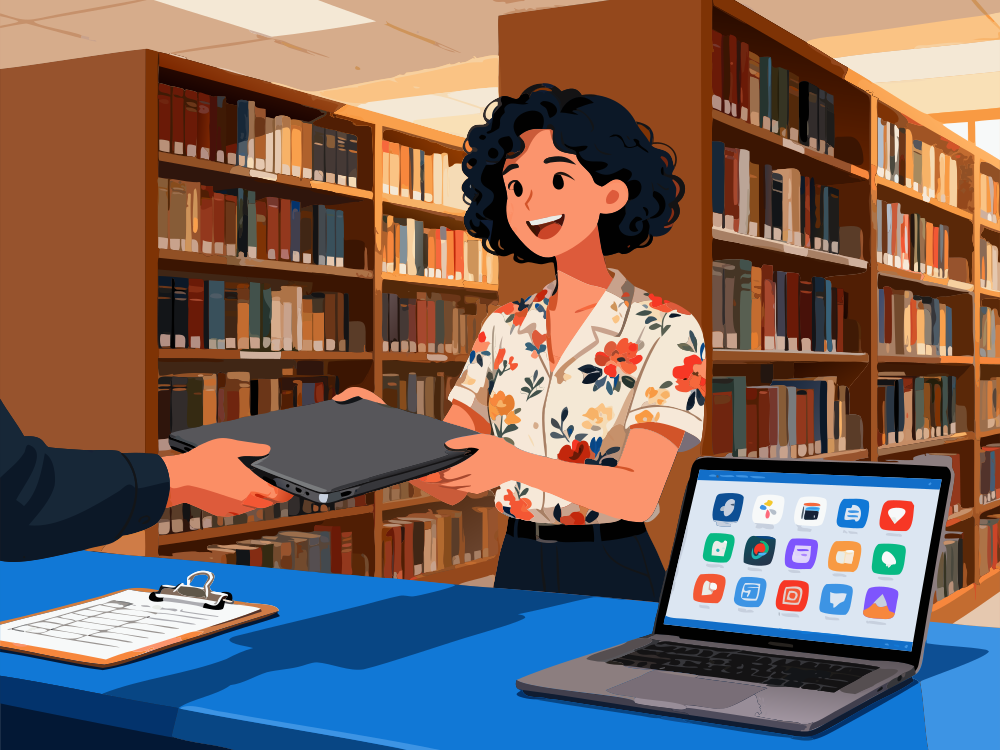
Instead of letting old devices sit in the cupboard, schools can refresh them to create a lending pool for students who need a device using ChromeOS Flex. This provides a low-cost alternative to purchasing new Chromebooks, ensuring that every student has the tools they need to participate.
- ChromeOS Flex replaces the bloated, aging Windows operating system with a familiar ChromeOS experience.
- Converted laptops benefit from faster boot times and on average 19% improved energy efficiency.
- ChromeOS Flex devices can be managed in the Google Admin Console alongside your school’s Chromebooks.
How can schools convert their old laptops using ChromeOS Flex?
For small deployments, ChromeOS Flex can be deployed using a bootable USB stick. IT admins can test that ChromeOS will run well on the device before committing to a permanent install.
For many devices, ChromeOS Flex can be deployed remotely over the network, with no complex requirements, from anywhere.
ChromeOS Flex is completely free to use, but it’s best to manage them using the Chrome Education Upgrade (typically £30 per device). Compared to the cost of a new laptop, there’s no more cost-effective way to supplement your digital inclusion initiative with suitable, secure, sustainable technology.

Let's map out your solution
As Google’s #1 Education Premier Partner in the UK, we’re available to provide advice and support to any school or Trust interested in ChromeOS solutions.
Contact us below to get started.